


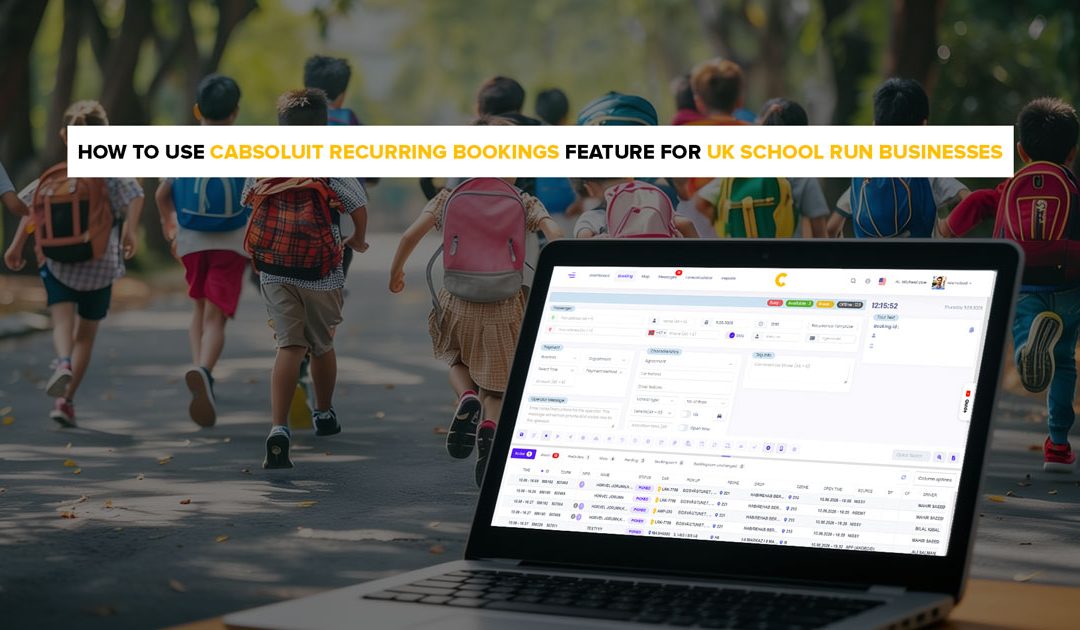
The same pupils. The same pickup points, the same time. Yet most operators set them up manually every morning entering the same booking, calling the same driver, confirming the same route.
That takes time. And it creates room for error.
Cabsoluit’s recurring booking feature removes all of it. Set a school run route up once. The system dispatches it automatically every school day for the entire term.
This article shows exactly how it works step by step.
What Is the Recurring Booking Feature in Cabsoluit?
The recurring booking feature lets operators create a school run booking once and have Cabsoluit automatically dispatch it on a set schedule daily, weekly or on specific days for as long as the route runs.
For school run operators, this means a morning pickup route set up on the first day of term runs automatically every school day until the term ends. No re-entry. No manual dispatch. No phone calls to confirm.
The feature lives inside the Bookings section of the admin portal. Every recurring route is visible in one place, active, paused or upcoming.
How to Set Up a Recurring School Run in Cabsoluit Step by Step
Step1: Create the Booking
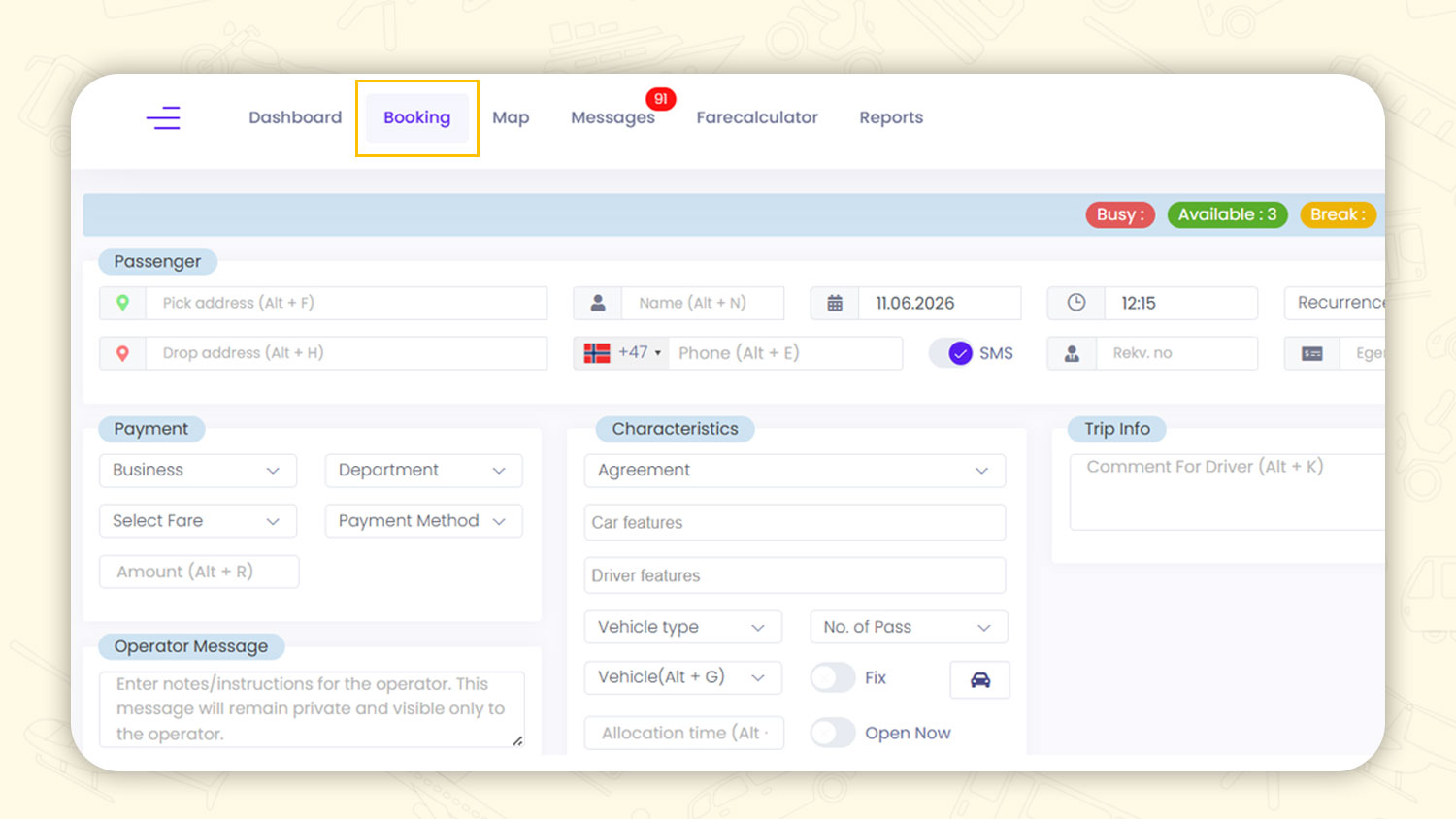
Open the admin portal and navigate to Bookings.
Fill in the booking details:
-
- Passenger Name: The pupil or group being transported
- Pickup Point: Home address or designated collection point
- Drop off Point: School Address
- Pickup Time: the time the driver must arrive at the pickup point
These are the same fields as a standard booking. The difference is what comes next the schedule.
Step 2: Set the Recurring Schedule
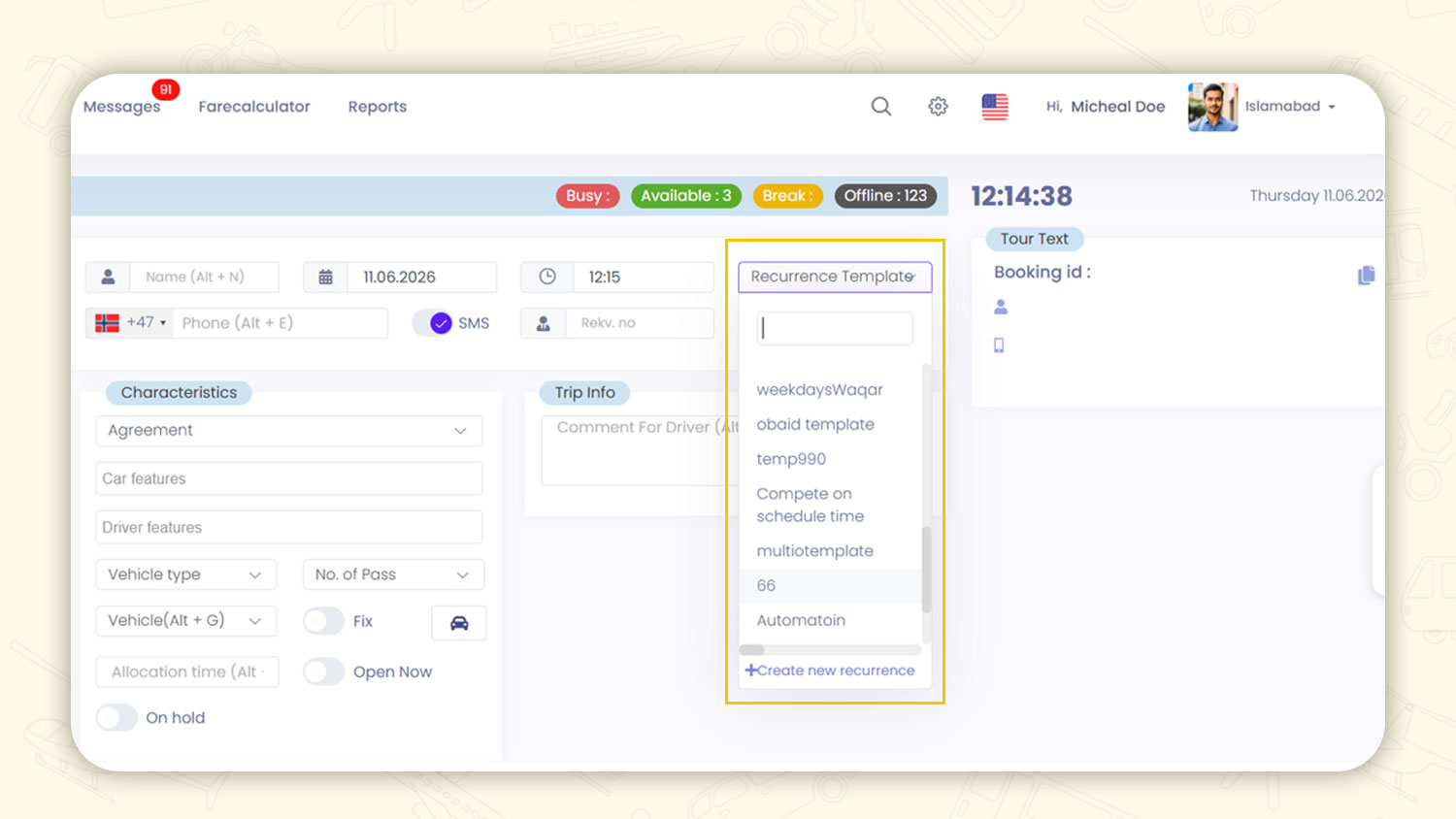
Once the booking details are entered, set the dispatch schedule.
Select which days the route runs for a standard school run this will be Monday to Friday. Then set the date range on the first day of term as the start date and the last day of term as the end date.
Cabsoluit will dispatch this booking automatically on every selected day within that date range. The route will not run outside of those dates. No manual intervention is needed at the end of term.
Step 3: Assign the Driver and Vehicle
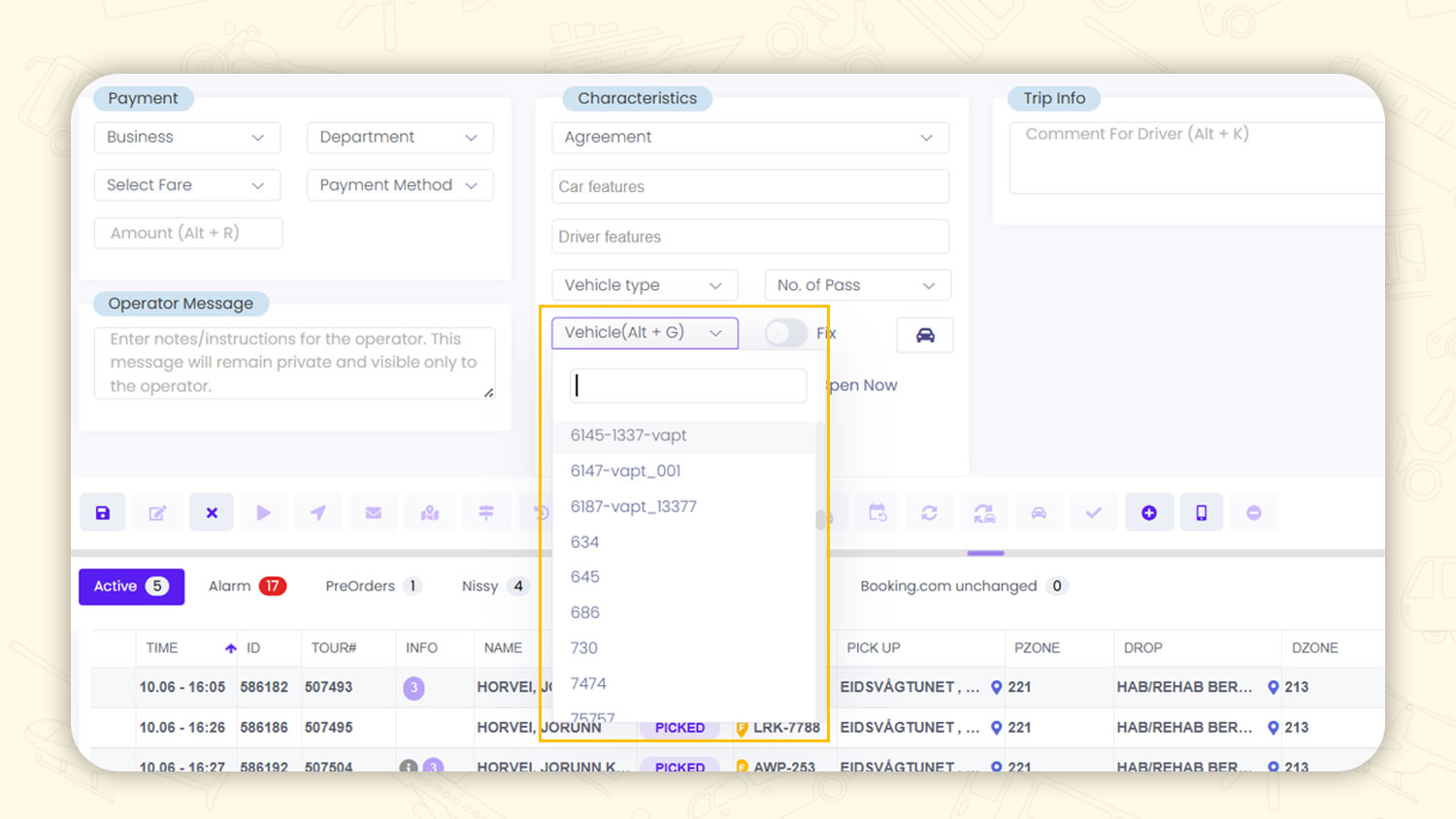
Navigate to the driver assignment field and select the driver who covers this route. If a vehicle is preassigned to the driver, it populates automatically. If not, select the appropriate vehicle from the available list.
For school runs, preassigning is recommended for councils and parents to expect the same driver on the same route every day.
Step 4: Activate and Confirm
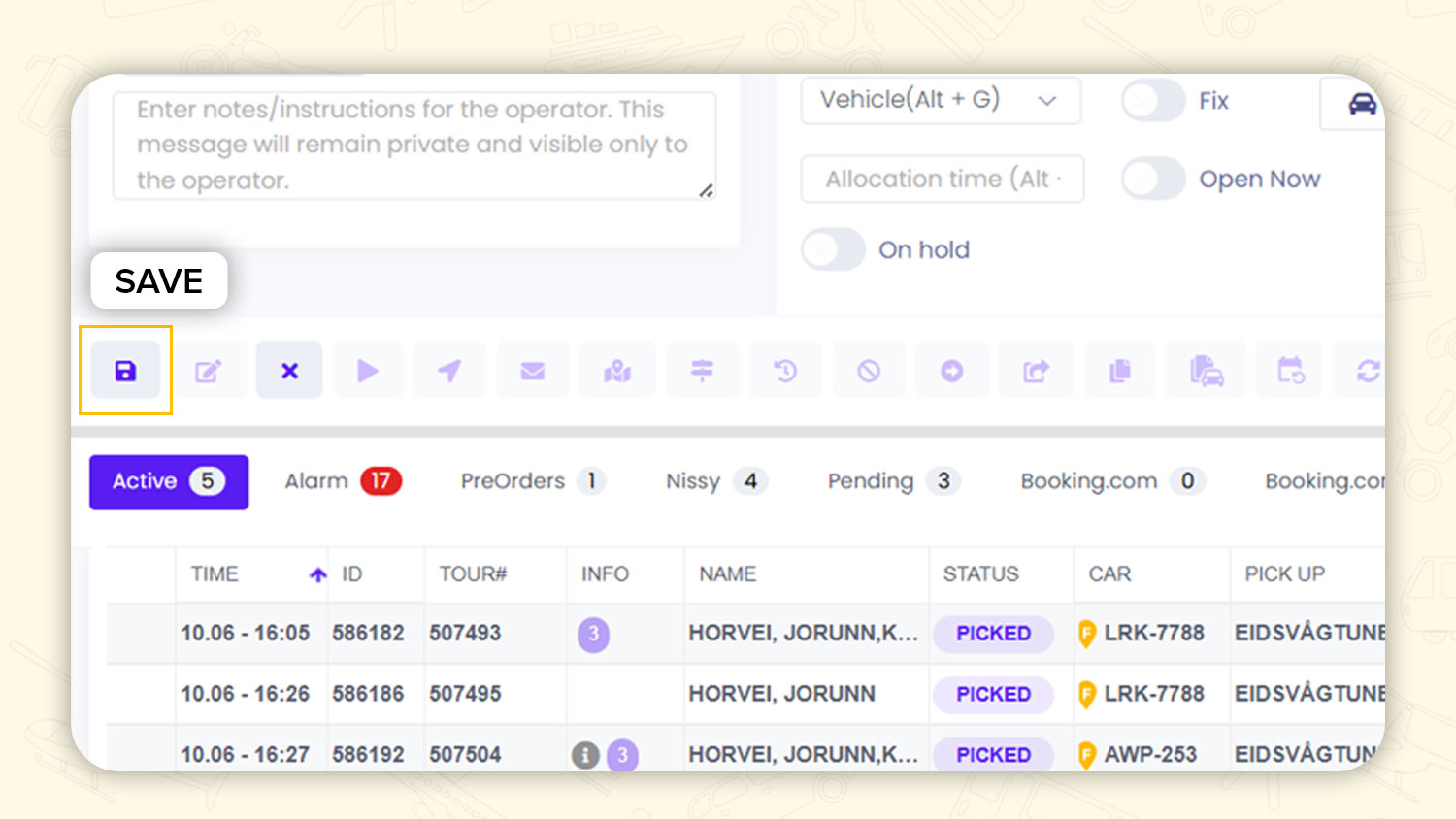
Review the booking summary route, schedule, driver and vehicle. Click Activate.
The route is now live. From the next scheduled dispatch time, the driver will receive the job automatically on their app. The driver app shows the passenger’s name, pickup point, drop off address and scheduled pickup time. The driver accepts one tap.
No dispatcher calls. No manual entry. No confirmation is needed from the office.
What Happens When a School Run Is Cancelled
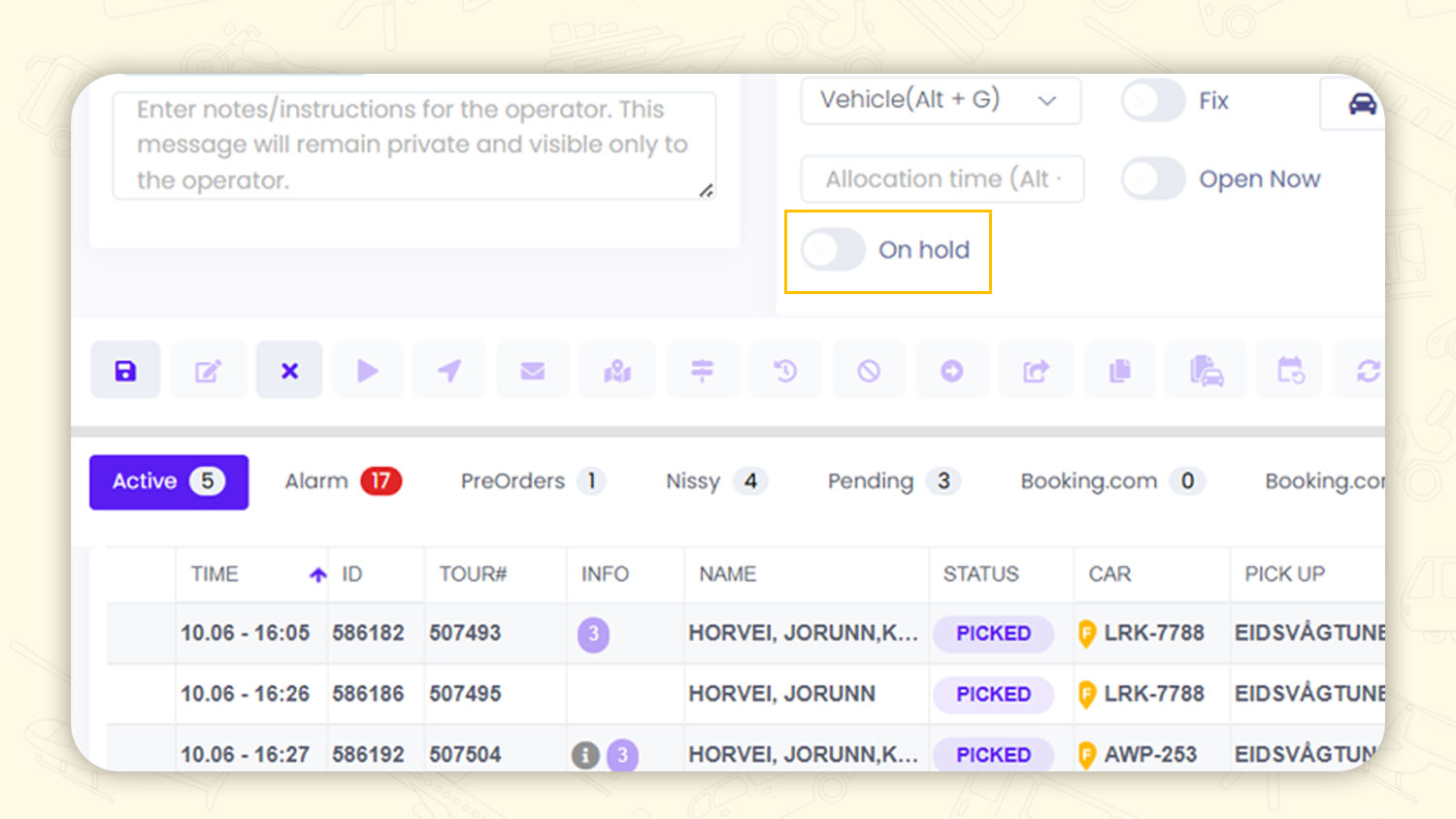
Cabsoluit handles this without disrupting the full schedule.
To cancel a single occurrence, open the recurring booking, find the specific date in the schedule of view and mark it as cancelled. That single dispatch is removed. Every other date in the schedule remains active. The recurring route continues as normal from the next scheduled day.
You can add the holidays and breaks to the calendar. The system skips all dispatches within that window and resumes automatically on the restart date.
No routes are deleted. No schedules need to be rebuilt.
How to Manage Term Dates in Cabsoluit
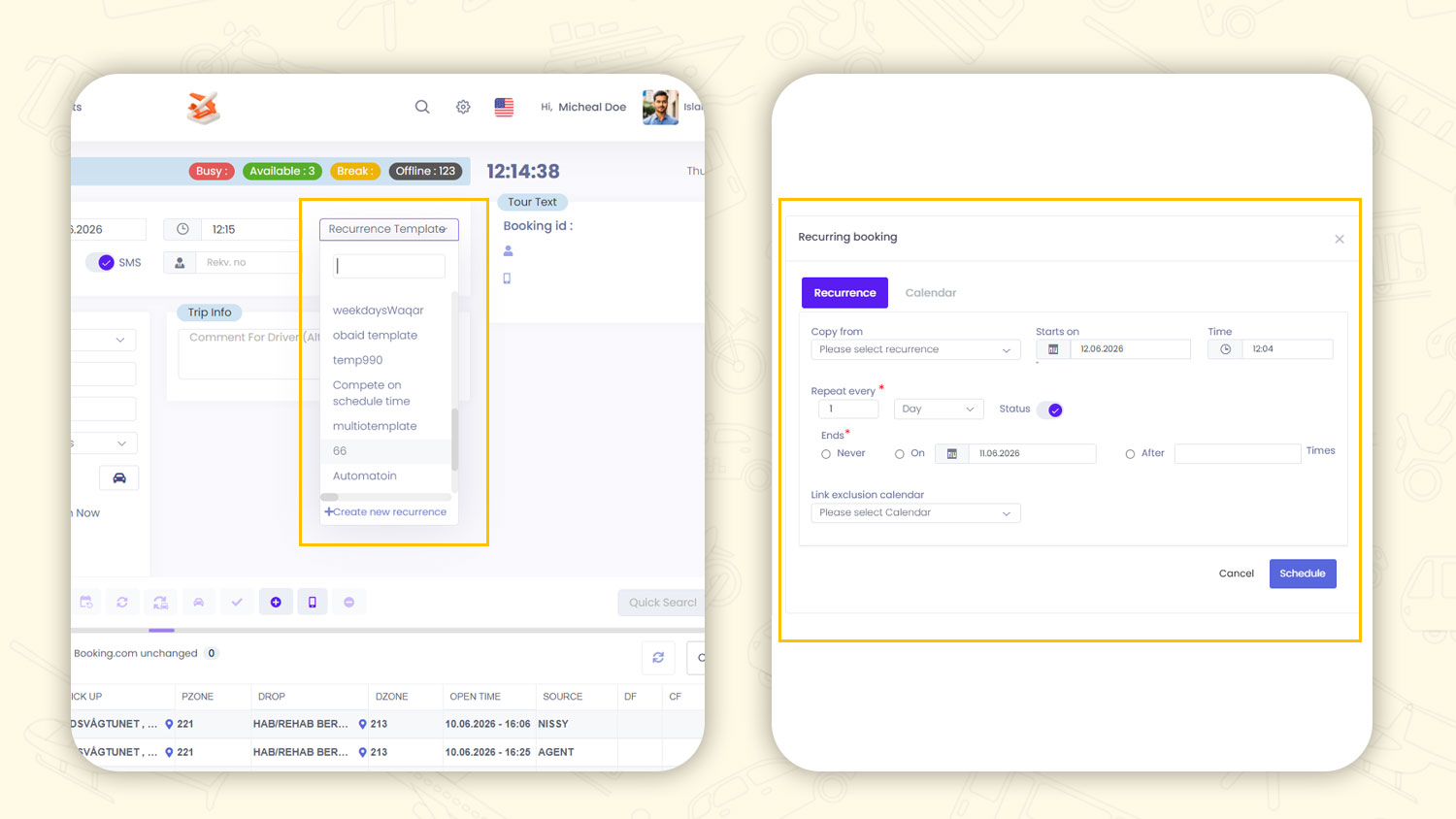
Each school term has a defined start and end date. Cabsoluit manages these within the recurring booking schedule.
When creating or editing a recurring route, set the start date to the first day of term and the end date to the last day of term. The system will only dispatch within this window. On the final day of term, the route stops automatically.
At the start of the next term, duplicate the existing recurring booking. Update the start and end dates for the new term. Driver and route details carry over. There is no need to rebuild the booking from scratch.
Over a full academic year with three terms, this means a school run route is set up three times. Not 195 times.
Conclusion
Manual school run dispatch is the most time consuming and error prone part of running a school transport operation.
Recurring bookings in Cabsoluit remove it entirely. Set the route up once. The system runs it every day until term ends.
Try Cabsoluit free for 14 days no setup fees, no long term contracts. Start your free trial here.
FAQs
Can I assign different drivers to the same recurring school run on different days?
Set Monday, Wednesday and Friday to one driver and Tuesday and Thursday to another each dispatches automatically to the correct driver.