


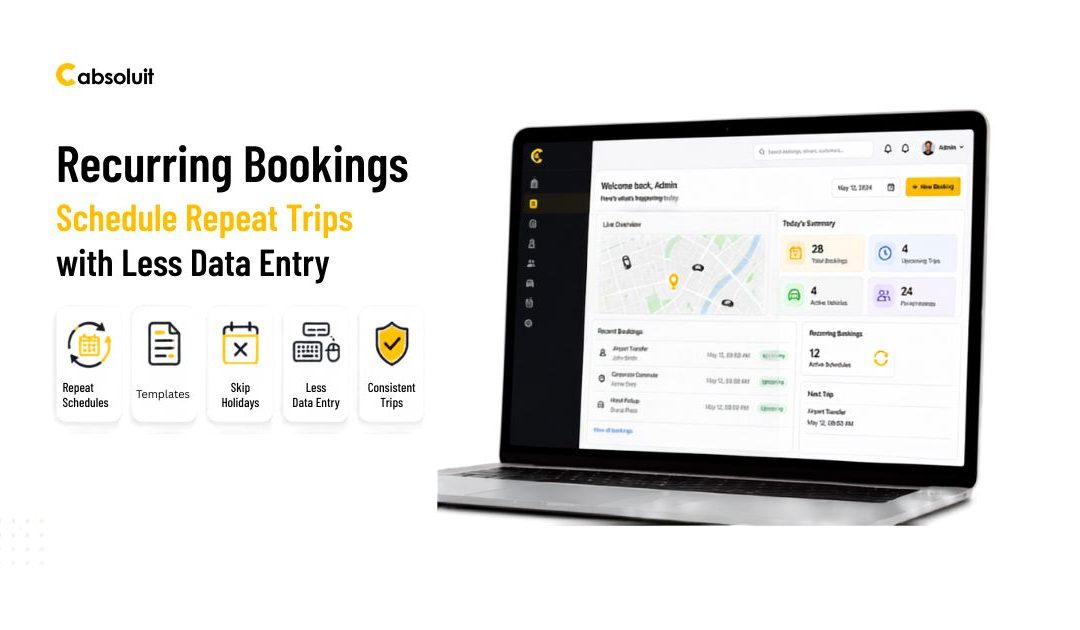
A weekly passenger trip can take several minutes to enter each time. Recurring bookings let you set up the route, passenger, timing, and repeat pattern once, then create bookings across multiple dates. This cuts repeated data entry and helps reduce scheduling mistakes.
- Turn a single booking into a dependable schedule
- Why recurring bookings simplify repeat transportation needs
- The three controls that shape every recurrence
- Preview the schedule and define when it stops
- Reuse Recurring Bookings with Recurrence Templates
- Prevent Unwanted Bookings with Exclusion Calendars
- Create a Calendar for Excluded Weekends and Dates
- Save and Maintain the Exclusion Calendar.
- Link the calendar to a recurring booking
- Connect exclusion calendars to recurrence templates
- Verify, edit, and maintain recurring booking schedules.
- Search by passenger and date to confirm results
- Edit recurrence details when plans change
- Use templates consistently for repeat operations
- Build a reliable recurring booking workflow
- Start with Accurate passenger and Route Information
- Use occurrence Limits for Controlled Schedules
- Pair Templates with Exclusion Calendars for Automation
- Conclusion
- FAQs
Turn a single booking into a dependable schedule
Recurring bookings work well for regular hotel transfers, employee shuttles, school trips, and other repeat transportation needs. Each generated booking uses the pickup, drop-off, passenger, and other details from the original setup.
Why recurring bookings simplify repeat transportation needs
A single configuration can create several bookings with the same basic details. You only need to choose when the trips start, how often they repeat, and when the schedule ends.
This approach also keeps repeating trips consistent. Instead of rebuilding each booking by hand, you can review one schedule and update it when plans change.
The three controls that shape every recurrence
The recurrence pattern controls how often a booking repeats. Available options include daily, weekly, and monthly schedules.
You can also choose when the schedule ends: never, on a specific date, or after a set of occurrences. An exclusion calendar adds another layer by skipping holidays, weekends, or other dates you select.
1. Create recurring bookings from the booking page
The booking page lets you create a recurring schedule while entering a new trip. Start with the full booking details, then add the recurrence settings before saving.
2. Complete the booking details before setting the recurrence
Open the booking page and enter the pickup location, drop-off location, passenger details, and any other required fields. These details become the basis for each booking created by the recurrence.
Check the information before moving on. An incorrect route or passenger detail can be carried across every booking in the schedule.
3. Configure frequency, days, times, and the start date
Open the Recurrence Template drop-down and select Create new recurrence. In the recurrence of dialogue, choose the start date and time, then set the repeat interval with a number and a frequency.
The frequency can be daily, weekly, or monthly. For a weekly schedule, select the days and times when the trip should occur. Different times can be set for each selected day.
Preview the schedule and define when it stops
Select the Calendar tab to review the dates created by the pattern. Selected dates appear highlighted, and you can remove any date by clicking it.
Return to the recurrence tab and choose an end condition. You can let the schedule continue forever, end on a date, or stop after a set number of bookings. For example, choosing three occurrences creates exactly three recurring bookings. Click Schedule, edit the recurrence if needed, and then click Save.
Reuse Recurring Bookings with Recurrence Templates
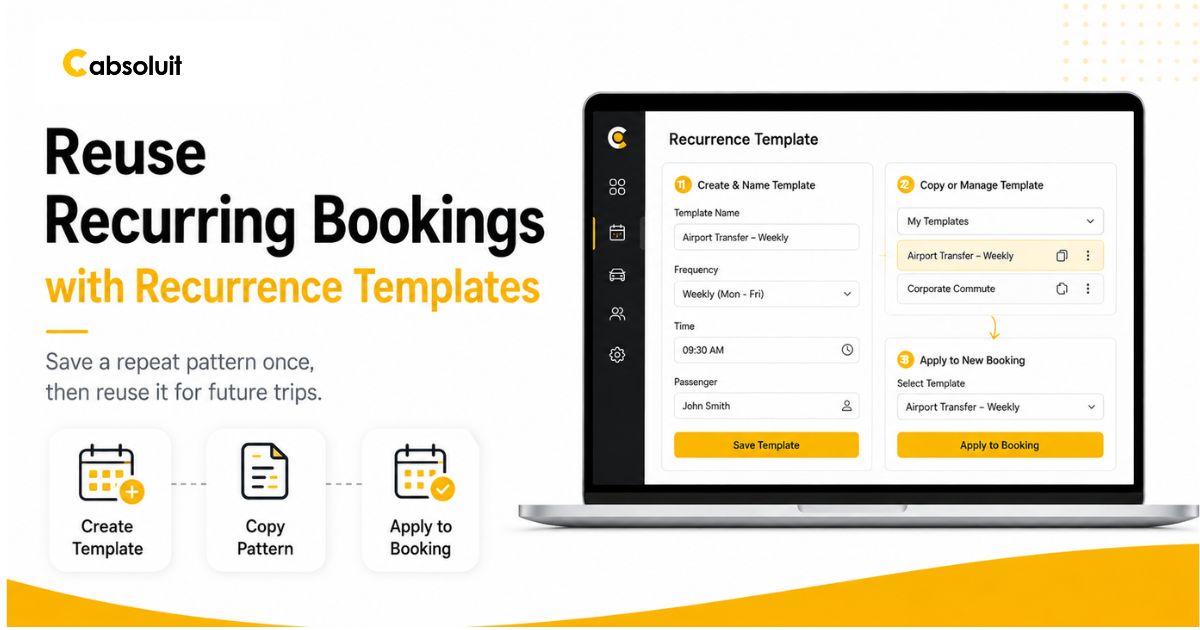
A recurrence template saves a repeat pattern for future use. It works well when the same schedule is needed for different passengers, routes, or booking dates.
1. Create and name a recurrence template
Open the side menu and select Recurrence Template under Bookings. Click Create a Recurrence Template to open the recurrence dialogue.
Enter a name, such as Hotel Schedule, then add the start date, time, repeat pattern, and end settings. Use the calendar tab to check the selected dates before clicking Schedule.
2. Copy and Manage Existing Recurrence Patterns
The Copy from Field lets you copy settings from an existing recurrence template. This saves time when a new template needs a similar schedule.
After saving, the template appears in the template list. You can edit or delete it later when the schedule changes or is no longer needed.
3. Apply a Saved Template to a New Booking.
Return to the booking page and enter the pickup, drop-off, passenger, and other required details. Open the Recurrence Template drop-down and select Hotel Schedule, or whichever saved template applies.
Click Save to create bookings based on that pattern. The saved schedule supplies the recurrence rules, while the new booking supplies the trip and passenger information.
4. Confirm Bookings Created from the Template
Use the search function to check the results. Enter the passenger's name and date in the dialogue, then click Search.
The results should show the bookings created from the selected template. Once confirmed, the same template can be used again whenever that schedule is needed.
Prevent Unwanted Bookings with Exclusion Calendars
An exclusion calendar keeps recurring bookings from being created on dates when service should not run. This is useful for weekends, public holidays, hotel blackout dates, or other planned closures.
Create a Calendar for Excluded Weekends and Dates
Open Settings from the side menu, then select Calendar in the left tab. Click Add New to create an exclusion calendar.
Enter a name, such as Hotel Calendar, and select the weekend days to exclude. You can also click on individual dates to add holidays or other days that should not generate bookings.
Save and Maintain the Exclusion Calendar.
Click Save after marking the dates. The new calendar appears in the calendar list with the other saved calendars.
Open the list whenever you need to review the settings. You can edit the calendar to change excluded days or delete it when the schedule no longer applies.
Link the calendar to a recurring booking
Create a booking and select Create new recurrence from the Recurrence Template drop-down. Fill in the start date, frequency, selected days, times, and end condition.
At the bottom of the recurrence dialogue, open Link exclusion calendar and select Hotel Calendar. Any recurrence date that falls on an excluded weekend or holiday will be skipped automatically.
Connect exclusion calendars to recurrence templates
You can also link to an exclusion calendar while creating a recurrence template. This keeps the same weekend and holiday rules attached to the saved schedule.
When the template is reused, the system applies to those exclusions again. You won't need to remove blocked dates by hand each time you need to.
Verify, edit, and maintain recurring booking schedules.
A quick review after saving helps confirm that the schedule matches the intended plan. It also makes errors easier to fix before they affect later trips.
Search by passenger and date to confirm results
Use the Search button in the dialogue and enter the passenger's name and date. Review the returned bookings and compare their dates and times with the recurrence settings.
Check the total number of bookings against the end condition. A schedule set to end after three occurrences should produce three bookings, unless excluded dates reduce the result.
Edit recurrence details when plans change
Click Edit recurrence to change the schedule. You can adjust the start time, selected days, repeat interval, end condition, or linked exclusion calendar.
Review the updated dates in the calendar tab before saving. This helps confirm that the change affects the correct bookings.
Use templates consistently for repeat operations
Saved templates can support hotel transfers, shuttles, regular passenger trips, and other repeat services. Apply the correct template, then verify the new bookings with the passenger name and date.
This check is useful even when the template has worked before. Passenger details and booking dates can vary with each new request.
Build a reliable recurring booking workflow
A dependable process starts with accurate booking details and ends with a review of the generated trips. The system's three tools work best when each has a clear role.
Start with Accurate passenger and Route Information
Check the pickup, drop-off, passenger, and required booking fields before setting the recurrence. These details carry into the bookings created from the schedule.
Use a direct recurring booking for a single scheduling need. Choose a recurrence template when the same pattern will be used again.
Use occurrence Limits for Controlled Schedules
An occurrence limit gives you a precise booking count. Selecting three occurrences, for example, creates three scheduled bookings before the recurrence stops.
For schedules that run until a known date, use a specific end date instead. Choose Never only when the recurring service has no planned end.
Pair Templates with Exclusion Calendars for Automation
Templates save the repeat pattern, while exclusion calendars remove dates that should not produce bookings. Together, they support schedules affected by weekends, holidays, or planned closures.
Review the calendar before saving and confirm the final bookings afterward. This keeps the schedule accurate without repeated manual edits.
Conclusion
Recurring bookings reduce the work needed for repeat transportation schedules. Enter the booking details once, choose a daily, weekly, or monthly pattern, and set the right end condition.
Use recurrence templates for schedules you expect to reuse. Add exclusion calendars when weekends or holidays should be skipped, and link them to individual recurrences or templates. Finally, search by passenger and date to confirm the generated bookings, then edit or delete templates and calendars as plans change.
Set up one repeat trip today, verify the result, and save the pattern if you need it again.